
When practitioners picture a website getting hacked, they imagine someone targeting them specifically. In reality, almost all attacks are automated. Bots scan thousands of sites a day looking for the same handful of easy openings, and they don’t care whether you’re a large brand or a solo practice.
The good news is that most of those openings come down to a few settings you can check yourself in under an hour.
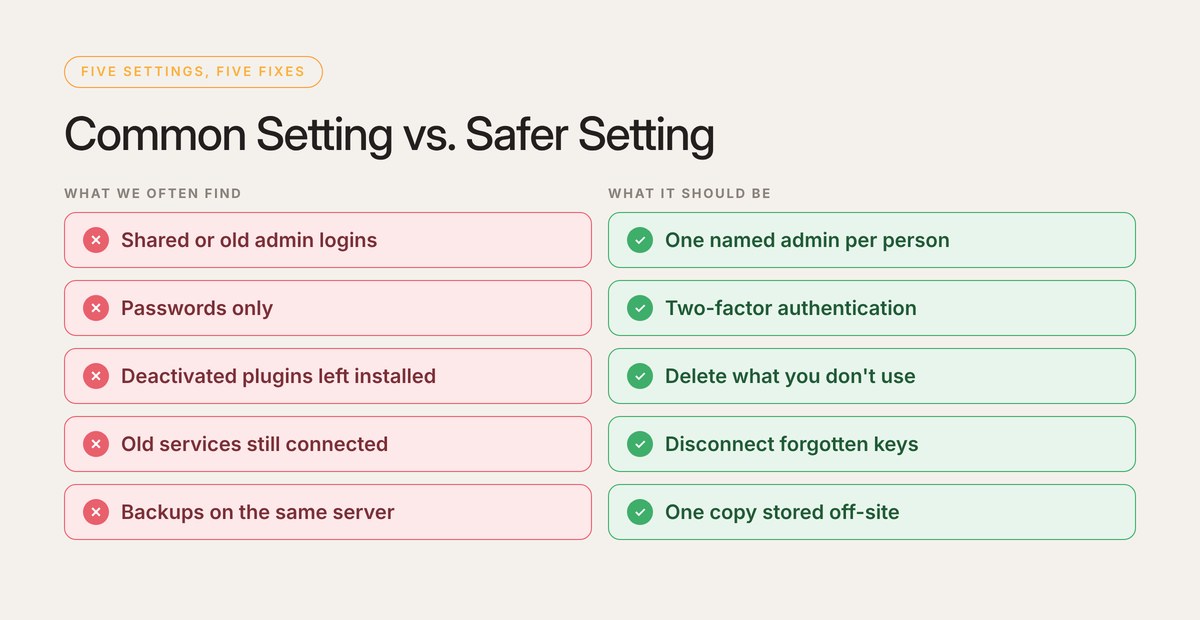
1. Too Many People Have Administrator Access
Over the years, a site collects logins: a former assistant, a past web designer, a marketing contractor, a shared login the whole office uses. Each administrator account is a full set of keys to your site.
The fix: every administrator should be a person you can name who still needs that access. Give everyone else a lower role, like Editor, or remove them. Never share one login between people.
2. No Two-Factor Authentication
Passwords get reused, guessed, and leaked in data breaches. Two-factor authentication adds a second step, usually a code from an app on your phone, so a stolen password alone isn’t enough to get in.
The fix: turn on two-factor authentication for every administrator account. Most security plugins include it for free.
3. Inactive Plugins and Themes Left Installed
Deactivating a plugin isn’t the same as removing it. Its files are still on your server, and if a vulnerability is discovered in it, your site can still be exposed. The same goes for old themes you tried once and forgot about.
The fix: delete any plugin or theme you aren’t actively using. Keep one default WordPress theme as a backup, and remove the rest.
4. Forgotten Connections and Keys
Backup services, marketing tools, page builders, and remote management dashboards often connect to your site with keys that stay active long after you stop using the service. In October 2026, attackers used exactly this kind of forgotten connection to backdoor fully updated WordPress sites through UpdraftPlus.
The fix: review the services connected to your site, and disconnect anything you don’t recognize or no longer use.
5. Backups Stored on the Same Server
Many hosting plans include backups, but they often live on the same server as your website. If that server is compromised or fails, your backups can go with it.
The fix: make sure at least one copy of your backups is stored somewhere else, and that someone has actually tested restoring from it.
Most hacks aren’t clever. They walk through a door someone forgot to close.
Your 15-Minute Security Check
- Open your Users list. Can you name every administrator, and do they all still need access?
- Check for two-factor authentication. Is it on for every admin account, including yours?
- Look at your Plugins page. Delete anything deactivated that you don’t plan to use.
- Review your connected services. Disconnect old backup, marketing, and management tools.
- Ask where your backups live. Make sure at least one copy is stored off your server.
If any of that sounds unfamiliar, it’s exactly what your web team should be able to answer in a few minutes.
I’ve spent more than 22 years building and caring for WordPress websites, many of them for practitioners, supplement brands, and wellness companies. The sites that run smoothly year after year aren’t the ones with the fanciest design. They’re the ones where someone is quietly doing this work every week.
Awespire Autopilot is how we do it for our clients: weekly updates with a backup first, daily off-site backups, firewall protection, vulnerability patching, 24/7 monitoring, a plain-English monthly report, and a real person to call when something looks off.